
For the sample coffee project below, Orlino created all four from one request: a short brief plus four months of sales figures. File generation took 383 seconds in this run, a little over six minutes.
The notes behind the files
The Spring Coffee Pop-up project has a goal of opening three stores by the end of Q2. Two are open; the third faces a two-week permit delay. Customer feedback favors the cold brew, while pastries need attention. Social posts account for 40% of first-week visits.
The notes also name three next steps: get the permit for the third store, refresh the pastry menu and post more on social.
The sales figures cover January through April:
| Month | Planned cups | Actual cups |
|---|---|---|
| January | 1,200 | 1,280 |
| February | 1,500 | 1,620 |
| March | 1,800 | 1,940 |
| April | 2,100 | 1,980 |
When you prepare your own notes, flag what is still undecided. Here, the notes don't give a revised opening date or say who owns the permit follow-up. Those are useful questions to bring into the meeting.
One request, four outputs
The request asked for a project overview in Word, a clean Excel data sheet, a short PowerPoint deck and a PDF for the team. The notes and numbers went into the same task, giving each file the same starting material.
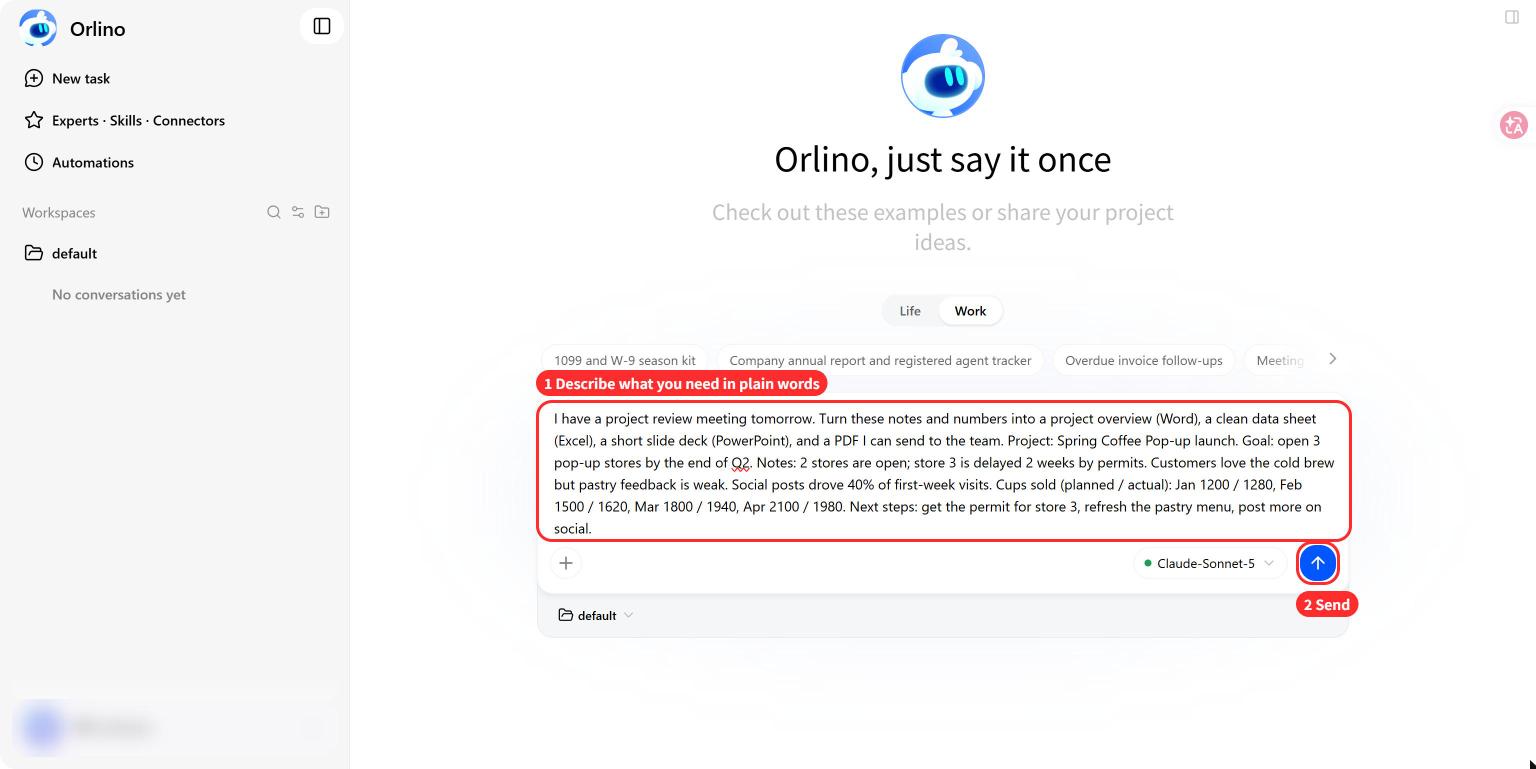
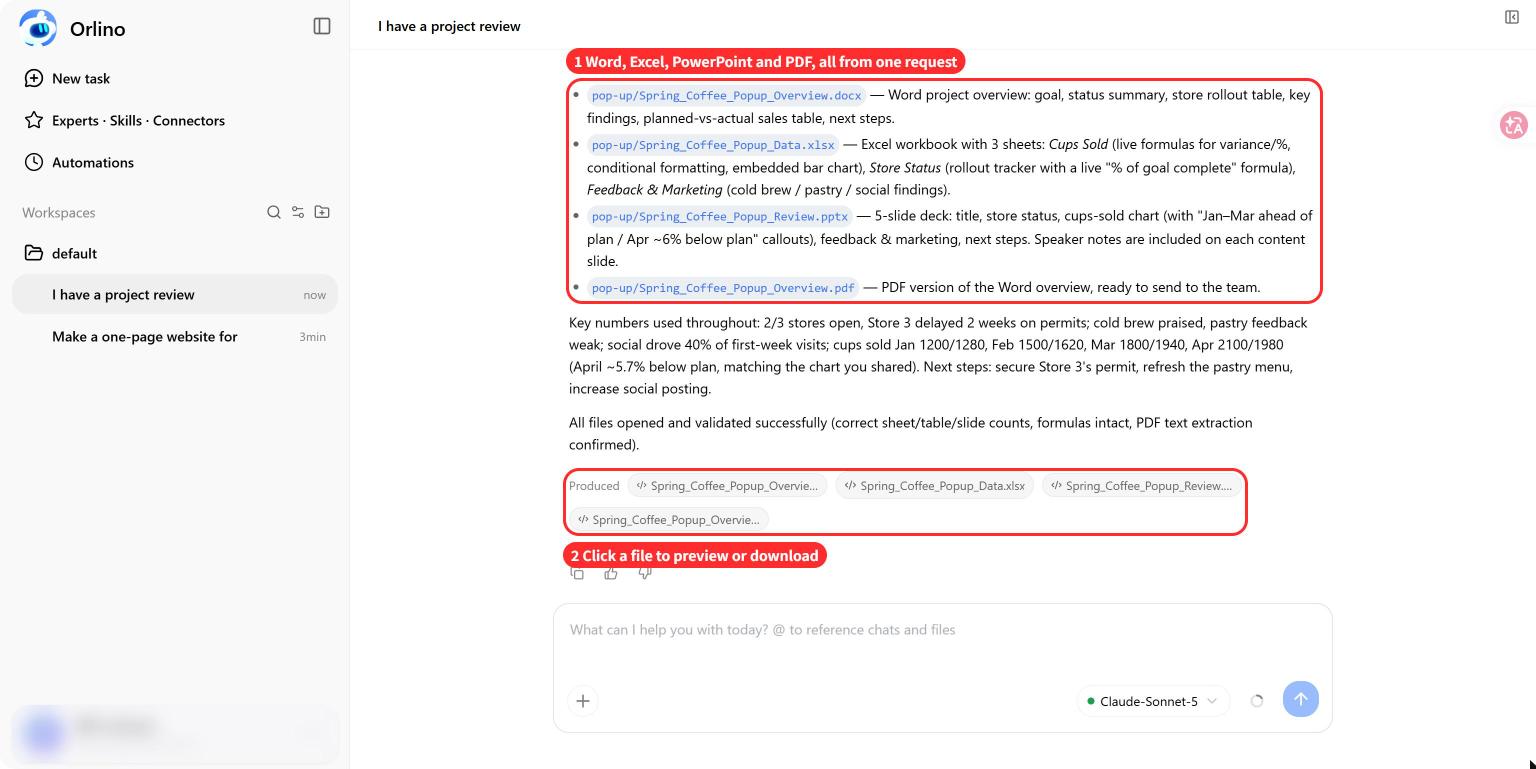
Orlino returned a file for each format:
- Word: a project overview with the goal, current status, store rollout, sales comparison and next steps.
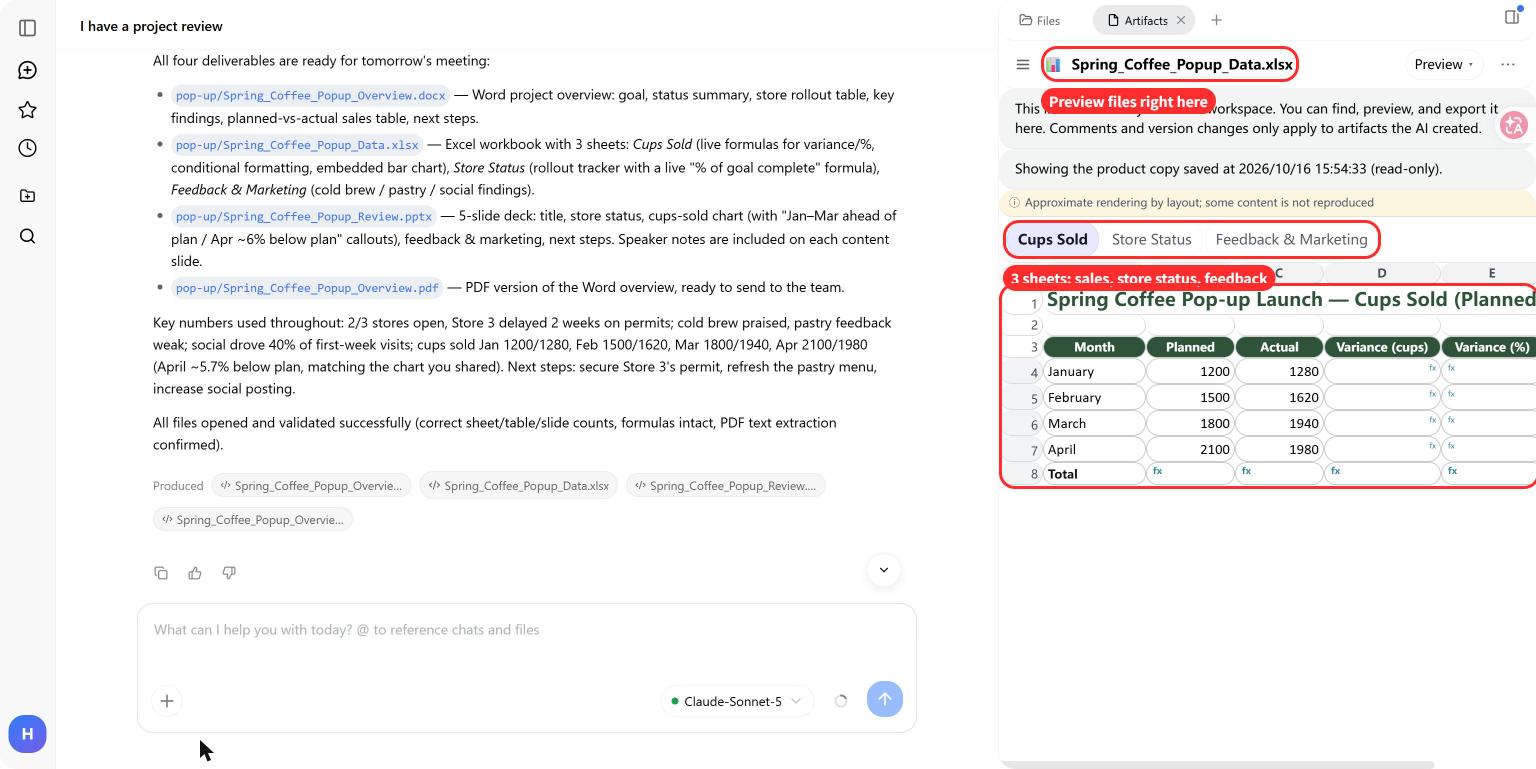
- Excel: three worksheets covering cup sales, store status, and feedback and marketing, with formulas, conditional formatting and a bar chart.
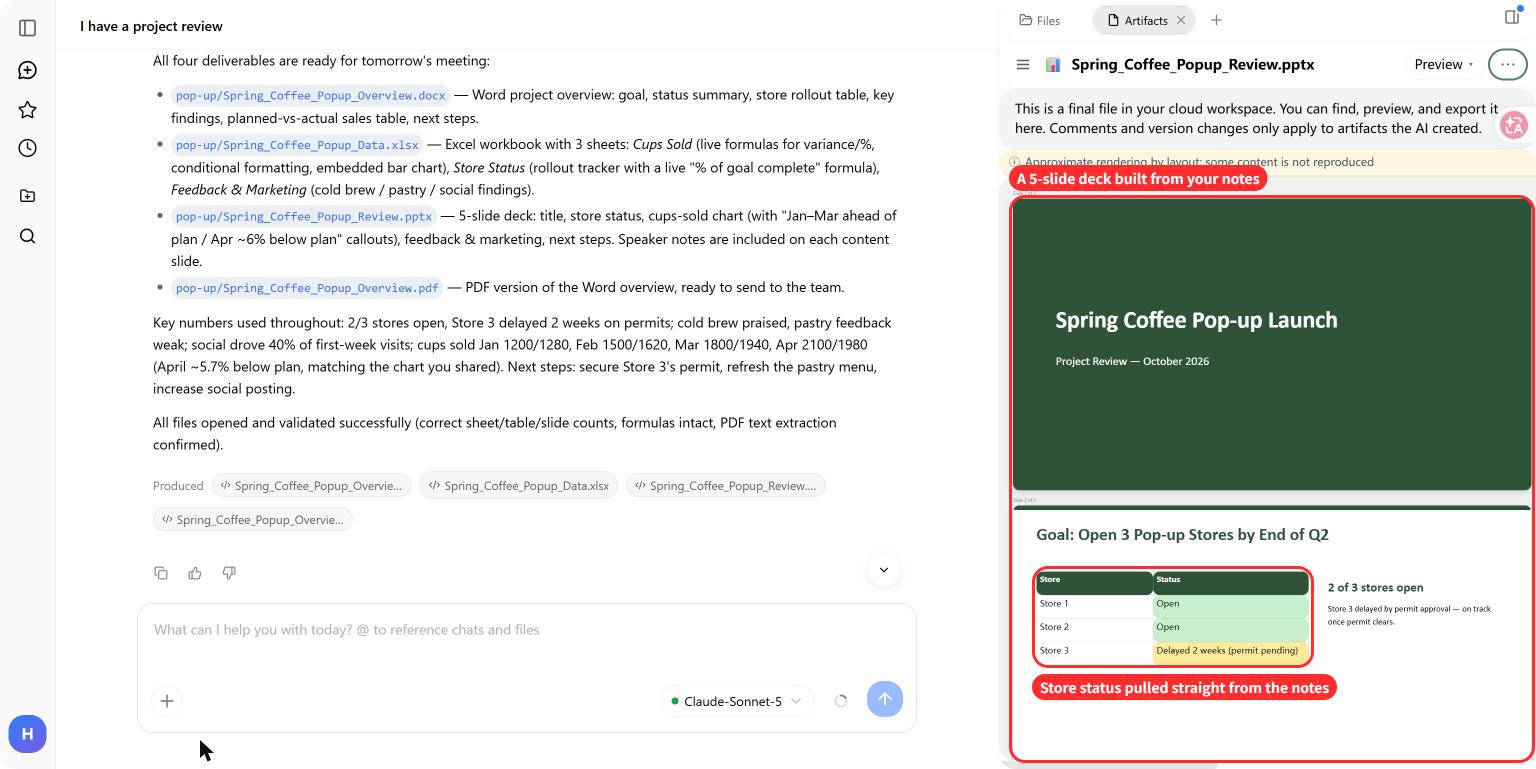
- PowerPoint: five slides, with speaker notes on the content slides.
- PDF: a PDF version of the overview.
The workbook preview shows the sales table alongside the other two worksheet tabs. It is an approximate rendering, so download the workbook and open it in Excel to check the formulas.
The slide preview presents store status as a table. For a review meeting, that makes the permit delay easier to spot than leaving it buried in a paragraph.
Orlino reported checking the files; open them yourself to review the figures and layout before sharing.
Try it with your own project
Open Orlino in your browser and start a new task under Work. Paste your notes and figures, or use + to attach the source files. Name the intended audience and each output format. Include any length limits, required sections or definitions the reader will need.
Orlino loaded its Word, Excel, PowerPoint and PDF skills automatically for this task. You can follow the work in the progress view.
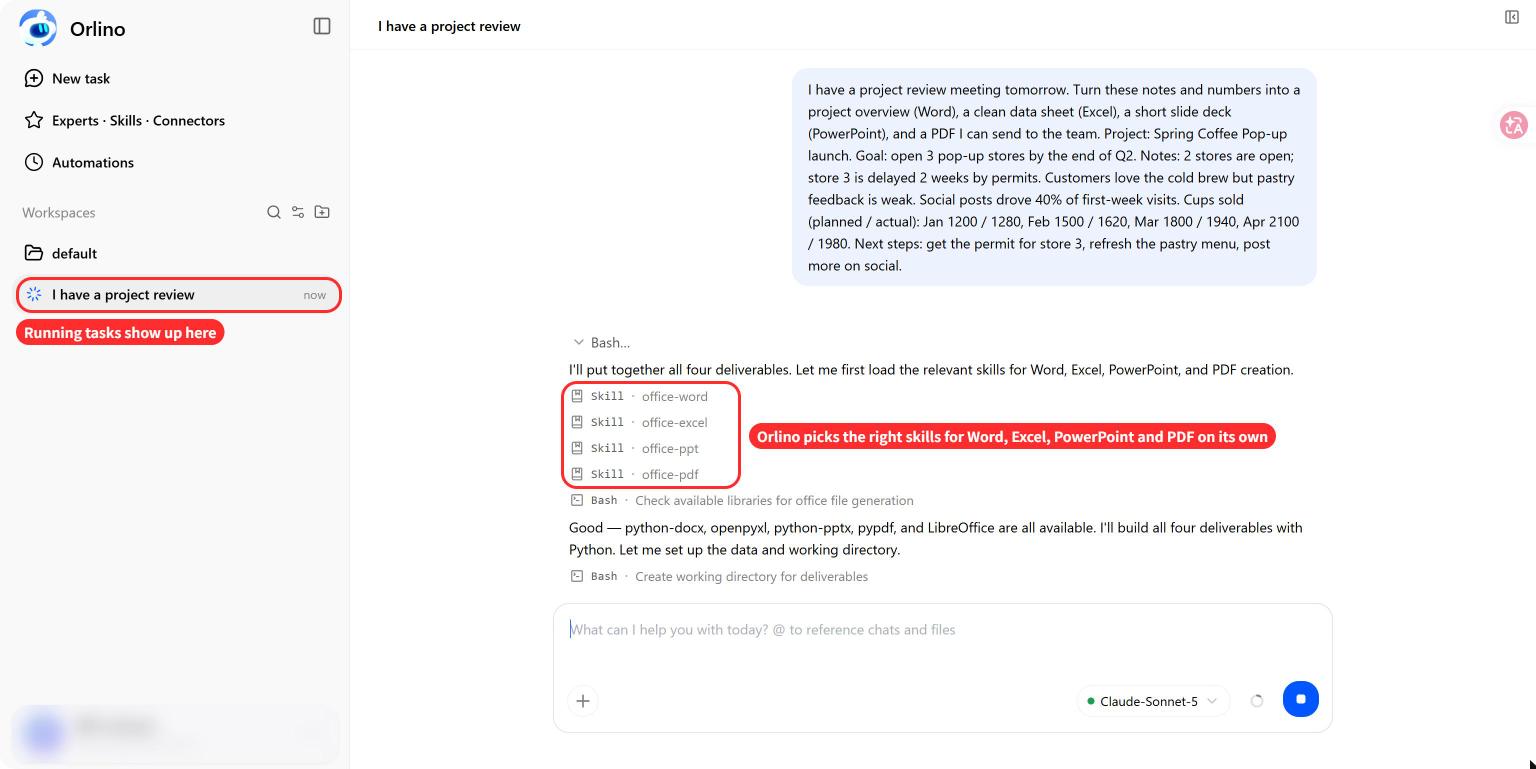
This prompt is adapted from the example with extra review instructions. Replace the sample notes and data with your own.
Prepare four files for a project review meeting: a Word overview, an Excel workbook, a five-slide PowerPoint deck and a PDF version of the overview.

Audience: the internal project team. Use concise English and keep names, dates, units and figures consistent across all four files.

Sample project notes:
- Project: Spring Coffee Pop-up.
- Goal: open three stores by the end of Q2.
- Two stores are open.
- The third store has a two-week permit delay. A revised opening date and an owner for the permit follow-up have not been supplied.
- Customer feedback is positive about cold brew and weak about pastries.
- Social posts account for 40% of first-week visits.
- Supplied next steps: get the permit for the third store, refresh the pastry menu and post more on social.

Monthly cup sales:
Month, Planned cups, Actual cups
January, 1200, 1280
February, 1500, 1620
March, 1800, 1940
April, 2100, 1980

For the Word overview, cover the goal, current status, sales, feedback, open questions and the supplied next steps.

For Excel, use three sheets: cup sales, store status, and feedback and marketing. Preserve the source figures. Calculate monthly and total variance as actual minus planned, using formulas. Add a chart comparing planned and actual cups, and label the units.

For PowerPoint, cover the project goal, store rollout, sales, customer and marketing feedback, and the supplied next steps. Add speaker notes to the content slides.

Keep supplied facts separate from interpretations and suggestions. Do not invent owners, dates or reasons for the sales changes. Mark missing information as “To confirm.”

Before returning the files, check their consistency and list what you checked. Flag anything that still needs a person's review.
Check the files before sharing them
Start with the figures. The sample totals are 6,600 planned cups and 6,820 actual cups, a surplus of 220. April is 120 cups below plan. A summary that only reports the total would miss the most recent month's shortfall.
Watch the explanations, too. A permit delay and a sales dip appear in the same notes, but that doesn't tell you whether one caused the other. Keep that as a question for the team.
- Check the source details. Keep the goal at the end of Q2 and the 40% figure tied to first-week visits.
- Inspect the workbook in Excel. Confirm the original values, formula ranges, totals, chart labels and units.
- Compare the four files. The store count, delay and sales figures should agree everywhere. Read the speaker notes too.
- Review the actions. Preserve the three next steps from the notes. Discuss any additional suggestions and agree on owners and dates with the team.
- Open the exported files. Look for cut-off text, missing content and awkward page breaks, especially in the PDF.
Gather the notes and numbers for your next review and start a task in Orlino. Use the prompt above to ask for the files your team needs.
About this article
Published by Orlino. This walkthrough uses a sample coffee-shop project and screenshots from the recorded run. See our editorial process.
Keep reading
10 Orlino Tips for Working Across Chats and Files
Use Orlino across chats and files: refer to earlier work, run separate tasks, edit webpage previews, and manage context and API keys.
Read article Task guidesStart with a task you already have
Find prompts and worked examples for reports, spreadsheets, and everyday planning.
Explore guides